Build an Extension for haex-vault
Learn how to create powerful extensions using the official SDK. This guide walks you through the complete process from setup to publishing.
Overview
The haex-vault SDK provides a complete framework for building secure, cryptographically-signed extensions. Extensions run in sandboxed environments with granular permissions, ensuring user data stays protected while enabling powerful functionality.
Database Access
Full SQLite database with migrations, CRDT sync support, and Drizzle ORM integration.
Cryptographic Security
Ed25519 signing, permission-based access control, and sandboxed execution.
Framework Support
Native adapters for Vue, React, Svelte, Nuxt, and vanilla JavaScript.
Easy Distribution
Sign, package, and publish to the marketplace with simple CLI commands.
Prerequisites
- Node.js 18+ - JavaScript runtime for building your extension
- npm, pnpm or yarn - Package manager of your choice
- Basic web development knowledge - HTML, CSS, JavaScript/TypeScript
Quick Start
Get a new extension up and running in just a few minutes. We'll use Vite with Vue, but you can use any framework.
1 Create Project & Install SDK
npm create vite@latest my-extension -- --template vue-ts
cd my-extension
npm install @haex-space/vault-sdk
npx haex init --name "my-extension" --author "Your Name"
This creates a new Vite project, installs the SDK, and initializes the extension structure including manifest and cryptographic keys.
2 Protect Your Private Key
The haex init command creates a private.key file in the haextension folder. This key is used to sign your extension.
Security Warning:Never commit your private.key to version control. Add it to .gitignore immediately. If you lose this key, you'll need to generate a new one and your extension's identity will change.
3 Start Development
npm run dev
Start the Vite dev server and load your extension in haex-vault for live development.
Load Dev Extension in haex-vault
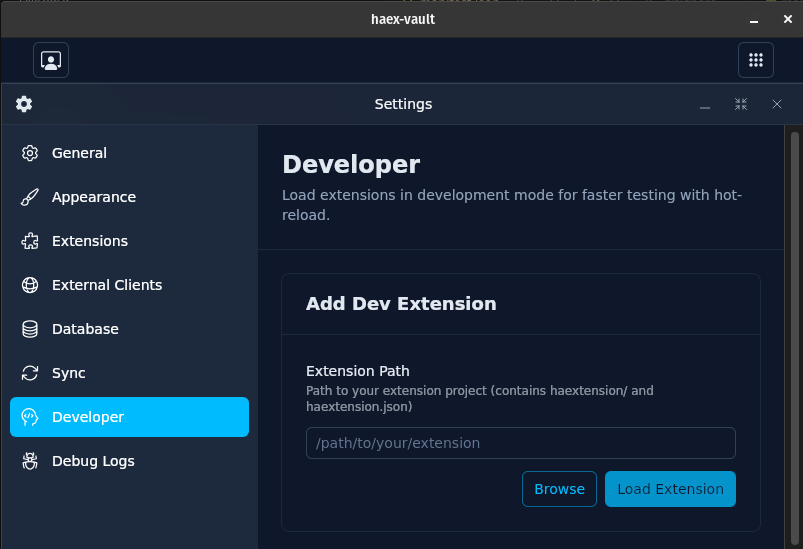
To test your extension during development, you can load it in development mode in haex-vault. This enables live development with hot-reload.
1 Open Developer Settings
Open haex-vault and go to Settings → Developer. Here you'll find the section for adding dev extensions.
2 Enter Extension Path
Enter the path to your extension project or click "Browse" to select the directory.
/path/to/your/extensionThe path should point to the root directory of your extension – the directory containing the haextension/ folder and haextension.config.json.
3 Load Extension
Click "Load Extension". The extension will be loaded in development mode and appear in the launcher with a DEV badge. Changes to your code will be automatically applied through hot-reload.
Hot-Reload:In development mode, changes to your code are automatically applied without needing to reload the extension. Just start your Vite dev server and changes will be displayed live in haex-vault.
Local Data Only:Dev extensions store their data locally only and are not synced. This is intentional to avoid conflicts during development. For production data, you need to sign and install the extension.
haextension.config.json
The configuration file in your extension's root directory defines development and build settings. Make sure the port matches your Vite dev server.
{
  "dev": {
    "port": 3000,
    "host": "localhost"
  },
  "build": {
    "distDir": "dist"
  }
}
Project Structure
After initialization, your project will have the following structure:
my-extension/
├── haextension/
│   ├── manifest.json      # Extension metadata and permissions
│   ├── public.key         # Your extension's public identity
│   ├── private.key        # Signing key (keep secret!)
│   └── icon.png           # Extension icon
├── src/
│   ├── main.ts            # Application entry point
│   ├── App.vue            # Root component
│   └── ...
├── haextension.config.json # Build configuration
├── package.json
└── vite.config.ts
Extension Manifest
The manifest.json file defines your extension's metadata, permissions, and configuration. It's the heart of your extension.
Basic Manifest
{
  "name": "my-extension",
  "version": "1.0.0",
  "author": "Your Name",
  "description": "A brief description of your extension",
  "entry": "index.html",
  "icon": "icon.png",
  "publicKey": "MCowBQYDK2VwAyEA...",
  "signature": "",
  "displayMode": "auto",
  "singleInstance": false,
  "migrationsDir": "database/migrations",
  "permissions": {
    "database": null,
    "filesystem": null,
    "http": null,
    "shell": null
  },
  "i18n": {
    "de": { "name": "Meine Erweiterung", "description": "Eine kurze Beschreibung" },
    "en": { "name": "My Extension", "description": "A brief description" }
  }
}
Field Reference
nameUnique identifier for your extension (lowercase, hyphens allowed)versionSemantic version (major.minor.patch)publicKeyYour Ed25519 public key (generated by haex init)signatureCryptographic signature (added during build)entryHTML entry point relative to the build outputdisplayModeHow the extension displays: 'auto', 'window', or 'iframe'singleInstanceIf true, only one instance can run at a timeSDK Integration
The SDK provides framework-specific adapters for seamless integration. Choose your framework below to see the setup code.
<script setup lang="ts">
import { useHaexVaultSdk } from '@haex-space/vault-sdk/vue'
import manifest from '../haextension/manifest.json'

const {
  client,           // HaexVaultSdk instance
  extensionInfo,    // Ref<ExtensionInfo | null>
  context,          // Ref<ApplicationContext | null>
  isSetupComplete,  // Ref<boolean>
  db,               // Drizzle ORM instance
  storage,          // StorageAPI
  getTableName      // (name: string) => string
} = useHaexVaultSdk({ manifest, debug: true })

// Wait for initialization
onMounted(async () => {
  await client.ready()
  console.log('Extension loaded:', extensionInfo.value?.name)
})
</script>

<template>
  <div v-if="!isSetupComplete">Loading...</div>
  <div v-else>
    <p>Theme: {{ context?.theme }}</p>
    <p>Platform: {{ context?.platform }}</p>
  </div>
</template>
Tip:The SDK automatically handles communication with haex-vault, context changes, and error handling. Just import and use the composable/hook.
Database
Extensions have access to a SQLite database with automatic table namespacing. Your tables are prefixed with your public key to prevent conflicts with other extensions.
Migrations
Define your database schema using migrations. Migrations run automatically and are tracked to prevent duplicate execution.
// Define your migrations
const migrations = [
  {
    name: '0001_create_passwords_table',
    sql: `
      CREATE TABLE IF NOT EXISTS ${getTableName('passwords')} (
        id TEXT PRIMARY KEY,
        title TEXT NOT NULL,
        username TEXT,
        password TEXT NOT NULL,
        url TEXT,
        notes TEXT,
        category_id TEXT,
        created_at TEXT DEFAULT (datetime('now')),
        updated_at TEXT DEFAULT (datetime('now'))
      )
    `
  },
  {
    name: '0002_create_categories_table',
    sql: `
      CREATE TABLE IF NOT EXISTS ${getTableName('categories')} (
        id TEXT PRIMARY KEY,
        name TEXT NOT NULL,
        icon TEXT,
        color TEXT
      )
    `
  }
]

// Register migrations during setup
client.onSetup(async () => {
  const result = await client.registerMigrationsAsync('1.0.0', migrations)
  console.log(`Applied ${result.appliedCount} migrations`)
})

await client.setupComplete()
Reserved Columns:haex-vault automatically adds the CRDT sync columns haex_hlc and haex_column_hlcs to all tables. Do not create columns starting with 'haex_' - they are reserved by the CRDT layer. Deletes are tracked separately via haex_deleted_rows; there is no tombstone column.
Queries & Mutations
// Query data
const passwords = await client.query<Password>(
  `SELECT * FROM ${getTableName('passwords')}`
)

// Query with parameters
const password = await client.query<Password>(
  `SELECT * FROM ${getTableName('passwords')} WHERE id = ?`,
  [passwordId]
)

// Insert data
await client.execute(
  `INSERT INTO ${getTableName('passwords')} (id, title, password) VALUES (?, ?, ?)`,
  [crypto.randomUUID(), 'My Login', 'secret123']
)

// Update data
await client.execute(
  `UPDATE ${getTableName('passwords')} SET title = ?, updated_at = datetime('now') WHERE id = ?`,
  ['New Title', passwordId]
)

// Delete data
await client.execute(
  `DELETE FROM ${getTableName('passwords')} WHERE id = ?`,
  [passwordId]
)
Drizzle ORM Integration
For type-safe queries, you can use Drizzle ORM with the SDK's built-in integration.
import { sqliteTable, text } from 'drizzle-orm/sqlite-core'

// Define schema (table names will be auto-prefixed)
const passwords = sqliteTable('passwords', {
  id: text('id').primaryKey(),
  title: text('title').notNull(),
  username: text('username'),
  password: text('password').notNull(),
})

// Initialize Drizzle with your schema
const db = client.initializeDatabase({ passwords })

// Use Drizzle query builder
const allPasswords = await db
  .select()
  .from(passwords)

// Insert with Drizzle
await db.insert(passwords).values({
  id: crypto.randomUUID(),
  title: 'My Login',
  password: 'secret123',
})
Key-Value Storage
For simple data that doesn't need database features, use the Storage API. It provides a localStorage-like interface (getItem / setItem / removeItem / keys / clear) scoped to your extension.
// The Storage API is scoped to the extension.
// Methods: getItem / setItem / removeItem / keys / clear.

await client.storage.setItem('lastSync', new Date().toISOString())
await client.storage.setItem('settings', JSON.stringify({ theme: 'dark' }))

// Retrieve data
const lastSync = await client.storage.getItem('lastSync')
const settings = JSON.parse((await client.storage.getItem('settings')) ?? '{}')

// List all keys
const keys = await client.storage.keys()

// Remove specific key
await client.storage.removeItem('lastSync')

// Clear all storage for this extension
await client.storage.clear()
Filesystem Access
Extensions can save and open files through the Filesystem API. All operations show native dialogs to the user for security.
// Save a file (opens save dialog)
const data = new TextEncoder().encode(JSON.stringify(exportData))
const result = await client.filesystem.saveFileAsync(data, {
  defaultPath: 'passwords-backup.json',
  title: 'Export Passwords',
  filters: [
    { name: 'JSON Files', extensions: ['json'] },
    { name: 'All Files', extensions: ['*'] }
  ]
})

if (result?.success) {
  console.log('Saved to:', result.path)
}

// Open a file with system viewer
const pdfData = await generatePDF()
await client.filesystem.openFileAsync(pdfData, {
  fileName: 'report.pdf',
  mimeType: 'application/pdf'
})

// Show an image
await client.filesystem.showImageAsync({
  dataUrl: 'data:image/png;base64,...'
})
HTTP Requests
Make HTTP requests to external APIs using the Web API. All requests must be to URLs declared in your manifest permissions.
// Simple GET request
const data = await client.web.fetchJsonAsync<ApiResponse>(
  'https://api.example.com/data'
)

// POST request with body
const response = await client.web.fetchAsync(
  'https://api.example.com/submit',
  {
    method: 'POST',
    headers: {
      'Content-Type': 'application/json',
      'Authorization': 'Bearer ' + token
    },
    body: JSON.stringify({ name: 'Test' })
  }
)

// Download binary data
const blob = await client.web.fetchBlobAsync(
  'https://cdn.example.com/file.zip'
)

// Open URL in browser
await client.web.openAsync('https://example.com/help')
Permissions
Extensions must declare all required permissions in the manifest. Users review and approve these permissions during installation.
Declaring Permissions
{
  "permissions": {
    "database": [
      {
        "target": "MCowBQYDK2Vw...__password-manager__credentials",
        "operation": "read"
      },
      {
        "target": "MCowBQYDK2Vw...__password-manager__categories",
        "operation": "readWrite"
      }
    ],
    "filesystem": [
      {
        "target": "/exports",
        "operation": "readWrite"
      }
    ],
    "http": [
      { "target": "https://api.example.com/**" },
      { "target": "https://cdn.example.com/*" }
    ],
    "shell": null
  }
}
Permission Types
Database Operations
read- SELECT onlyreadWrite- SELECT + INSERT/UPDATEcreate- CREATE TABLEdelete- DELETE rowsalterDrop- ALTER / DROP TABLE
Filesystem Operations
read- Read files from specified pathsreadWrite- Read and write files
HTTP Requests
URL-pattern based: declare each allowed URL/domain as a target (glob patterns ** / *). The HTTP method is not currently enforced; only the URL is checked.
Shell
execute- Run a shell command configured by the user
Checking Permissions at Runtime
// SDK permission checks are simplified to read | write.
// Use the full table name as the "resource" target.

const otherTable = client.getDependencyTableName(
  'MCowBQYDK2Vw...',
  'password-manager',
  'credentials',
)

// Check database permission
const canRead = await client.permissions.checkDatabaseAsync(otherTable, 'read')

if (canRead) {
  const data = await client.query(`SELECT * FROM ${otherTable}`)
}

// Check web permission (URL must match a manifest http target)
const canFetch = await client.permissions.checkWebAsync('https://api.external.com/v1/data')

if (canFetch) {
  const response = await fetch('https://api.external.com/v1/data')
  // ... process response
}

// Check filesystem permission
const canWrite = await client.permissions.checkFilesystemAsync(
  '/exports/backup.json',
  'write',
)

if (canWrite) {
  await client.fs.writeFile('/exports/backup.json', data)
}
Application Context
Access the current theme, locale, and platform information. The context updates automatically when the user changes settings.
// Get current context
const context = await client.request('haextension:context:get')
console.log('Theme:', context.theme)      // 'light' | 'dark' | 'system'
console.log('Locale:', context.locale)    // 'en' | 'de' | ...
console.log('Platform:', context.platform) // 'linux' | 'macos' | 'windows' | 'android' | 'ios'

// Listen for context changes
client.on('haextension:context:changed', (event) => {
  const { context } = event.data
  // Update your UI theme, locale, etc.
  applyTheme(context.theme)
})
Build & Sign
When you're ready to distribute your extension, build it and sign it with your private key. The CLI produces a .xt file.
# 1. Build your extension
npm run build

# 2. Sign and package the build output. The CLI is shipped with the SDK.
npx haex sign dist -k haextension/private.key

# Produces:  my-extension-1.0.0.xt
# (.xt is the official packaged-extension extension)
Important:Keep your private key safe and backed up. If you lose it, you cannot update your extension and will need to publish as a new extension with a different identity.
Publishing
Share your extension with the haex.space community through the marketplace.
- 1Test Thoroughly
Test your extension on all platforms you want to support. Check permissions work correctly.
- 2Prepare Assets
Create screenshots, write a compelling description, and prepare your extension icon.
- 3Submit to Marketplace
Upload your signed .xt file to the marketplace with your listing details.
- 4Review Process
Our team reviews extensions for security and quality. Typical review time is 2-3 business days.
Complete Example
Here's a complete password manager extension showing all the concepts together:
<script setup lang="ts">
import { ref, onMounted, computed } from 'vue'
import { useHaexVaultSdk } from '@haex-space/vault-sdk/vue'
import manifest from '../haextension/manifest.json'

interface Password {
  id: string
  title: string
  username: string | null
  password: string
  url: string | null
  created_at: string
}

const { client, isSetupComplete, context, getTableName, storage } = useHaexVaultSdk({
  manifest,
  debug: globalThis._importMeta_.env.DEV
})

const passwords = ref<Password[]>([])
const newPassword = ref({ title: '', username: '', password: '', url: '' })
const loading = ref(true)

// Migrations
const migrations = [
  {
    name: '0001_initial',
    sql: `
      CREATE TABLE IF NOT EXISTS ${getTableName('passwords')} (
        id TEXT PRIMARY KEY,
        title TEXT NOT NULL,
        username TEXT,
        password TEXT NOT NULL,
        url TEXT,
        created_at TEXT DEFAULT (datetime('now'))
      )
    `
  }
]

// Setup hook - runs once after initialization
client.onSetup(async () => {
  await client.registerMigrationsAsync(manifest.version, migrations)
})

// Load data after setup complete
onMounted(async () => {
  await client.setupComplete()
  await loadPasswords()
  loading.value = false
})

async function loadPasswords() {
  passwords.value = await client.query<Password>(
    `SELECT * FROM ${getTableName('passwords')} ORDER BY created_at DESC`
  )
}

async function addPassword() {
  if (!newPassword.value.title || !newPassword.value.password) return

  await client.execute(
    `INSERT INTO ${getTableName('passwords')} (id, title, username, password, url) VALUES (?, ?, ?, ?, ?)`,
    [
      crypto.randomUUID(),
      newPassword.value.title,
      newPassword.value.username || null,
      newPassword.value.password,
      newPassword.value.url || null
    ]
  )

  newPassword.value = { title: '', username: '', password: '', url: '' }
  await loadPasswords()
}

async function deletePassword(id: string) {
  await client.execute(
    `DELETE FROM ${getTableName('passwords')} WHERE id = ?`,
    [id]
  )
  await loadPasswords()
}

async function exportPasswords() {
  const data = new TextEncoder().encode(JSON.stringify(passwords.value, null, 2))
  await client.filesystem.saveFileAsync(data, {
    defaultPath: 'passwords-export.json',
    filters: [{ name: 'JSON', extensions: ['json'] }]
  })
}

const isDark = computed(() => context.value?.theme === 'dark')
</script>

<template>
  <div :class="{ 'dark': isDark }" class="min-h-screen p-4">
    <div v-if="loading" class="flex items-center justify-center h-64">
      <div class="animate-spin rounded-full h-8 w-8 border-b-2 border-primary"></div>
    </div>

    <div v-else>
      <header class="flex justify-between items-center mb-6">
        <h1 class="text-2xl font-bold">My Password Manager</h1>
        <button @click="exportPasswords" class="btn btn-secondary">
          Export
        </button>
      </header>

      <!-- Add Password Form -->
      <form @submit.prevent="addPassword" class="card mb-6 p-4 space-y-4">
        <input v-model="newPassword.title" placeholder="Title" required class="input" />
        <input v-model="newPassword.username" placeholder="Username" class="input" />
        <input v-model="newPassword.password" type="password" placeholder="Password" required class="input" />
        <input v-model="newPassword.url" placeholder="URL" class="input" />
        <button type="submit" class="btn btn-primary w-full">Add Password</button>
      </form>

      <!-- Password List -->
      <div class="space-y-2">
        <div v-for="pwd in passwords" :key="pwd.id" class="card p-4 flex justify-between items-center">
          <div>
            <h3 class="font-semibold">{{ pwd.title }}</h3>
            <p class="text-sm text-muted">{{ pwd.username || 'No username' }}</p>
          </div>
          <button @click="deletePassword(pwd.id)" class="btn btn-danger btn-sm">
            Delete
          </button>
        </div>
      </div>
    </div>
  </div>
</template>
Next Steps
Explore the full SDK source code and examples
See what others have built for inspiration
Example Projects
Ready-to-use starter templates for different frameworks